
It's your first day! Or your second. And you need to set up your 2 Step Authentication. This added step for logging in will keep your account much more secure than just a password.
Below are some basic instructions. First, you will receive your basic login information, formatted something like what you see immediately below this line. Then, you'll follow the instructions past the line of /////// and finish configuring the system to link to your mobile phone and deliver you the 2 Step Authentication codes you need.
For your first few logins, you will use one of the 8 digit codes listed with your login information.
---------------------------------------------------------------------------------------------------------------
Account Information
[ ! ] - The Login Information Shared with you is TEMPORARY - Passwords are set to request a change after first login and "Backup" 2 Step Codes are, like all codes, one time use only.
Google
UID: flastname@optoro.com
PW: BLAHBLAHBLAH
2 Step: ######## | ########
Optiturn
UID: flastname
PW: BLAHBLAHBLAH
/////////////////////////////////////////////////////////////////////////////////////////////////////////
VIDEO
https://drive.google.com/a/optoro.com/file/d/0B_f0WhAEpQ_kQXdwS3dvWEpRd0k/view
Instructions for Setting Up 2 Step Authentication
[ ! ] - Note that your screen will look slightly different.
First, after logging in for the first time (and using one of the "Backup" 2 Step codes, listed above), immediately navigate to the Account Settings in the upper right hand corner of the screen.
- click on your e-mail address
- then click on the blue "MY Account" button
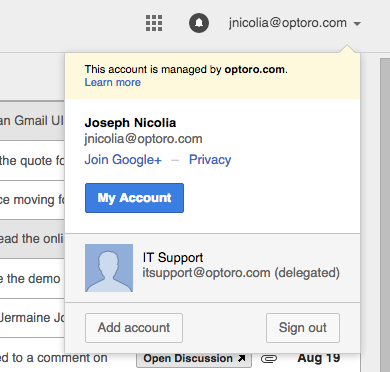
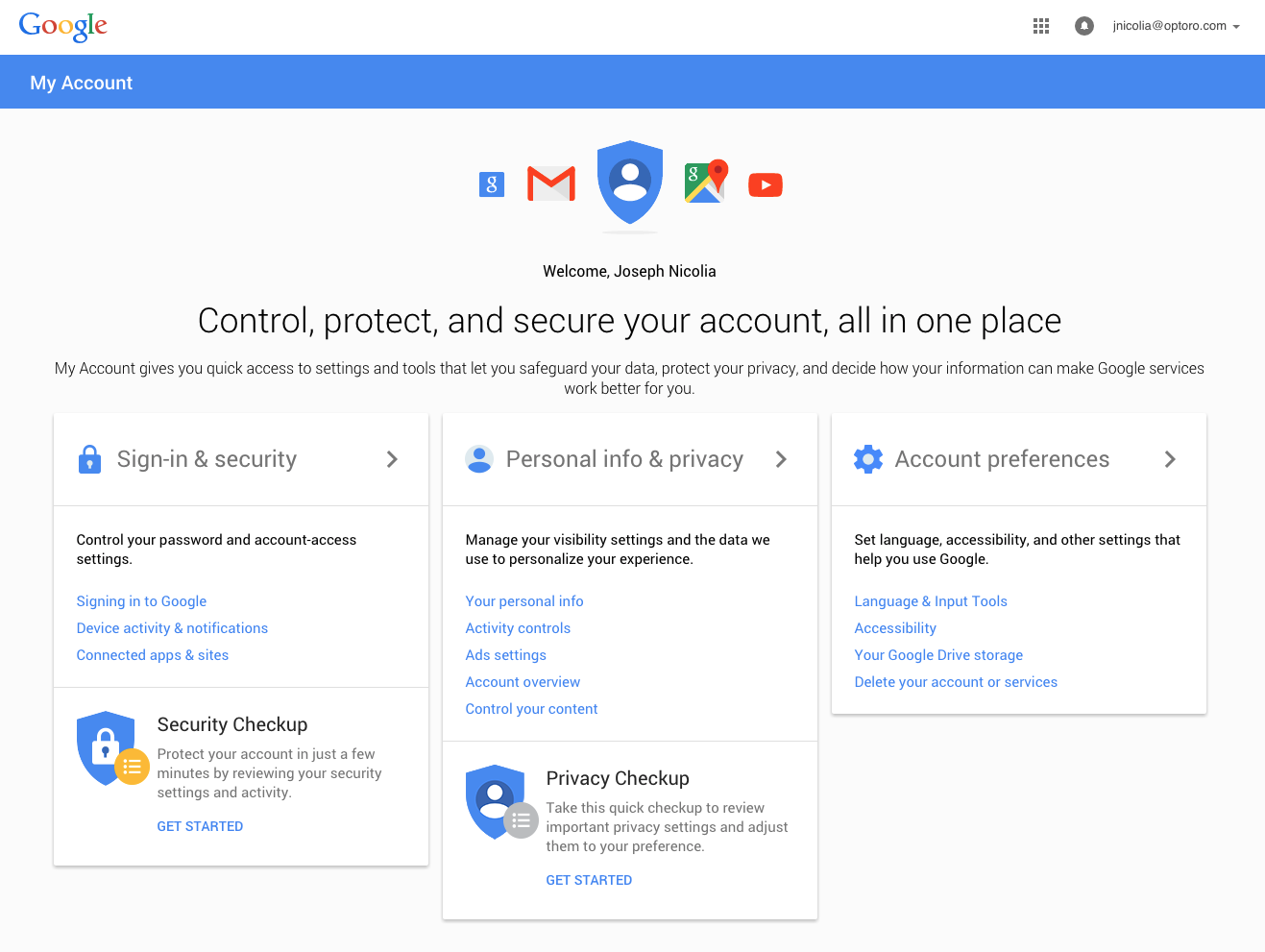
Next, navigate to the user/account settings for "Sign in and Security" by clicking on the far left tab.
(It doesn't look like a button, but it is one!)
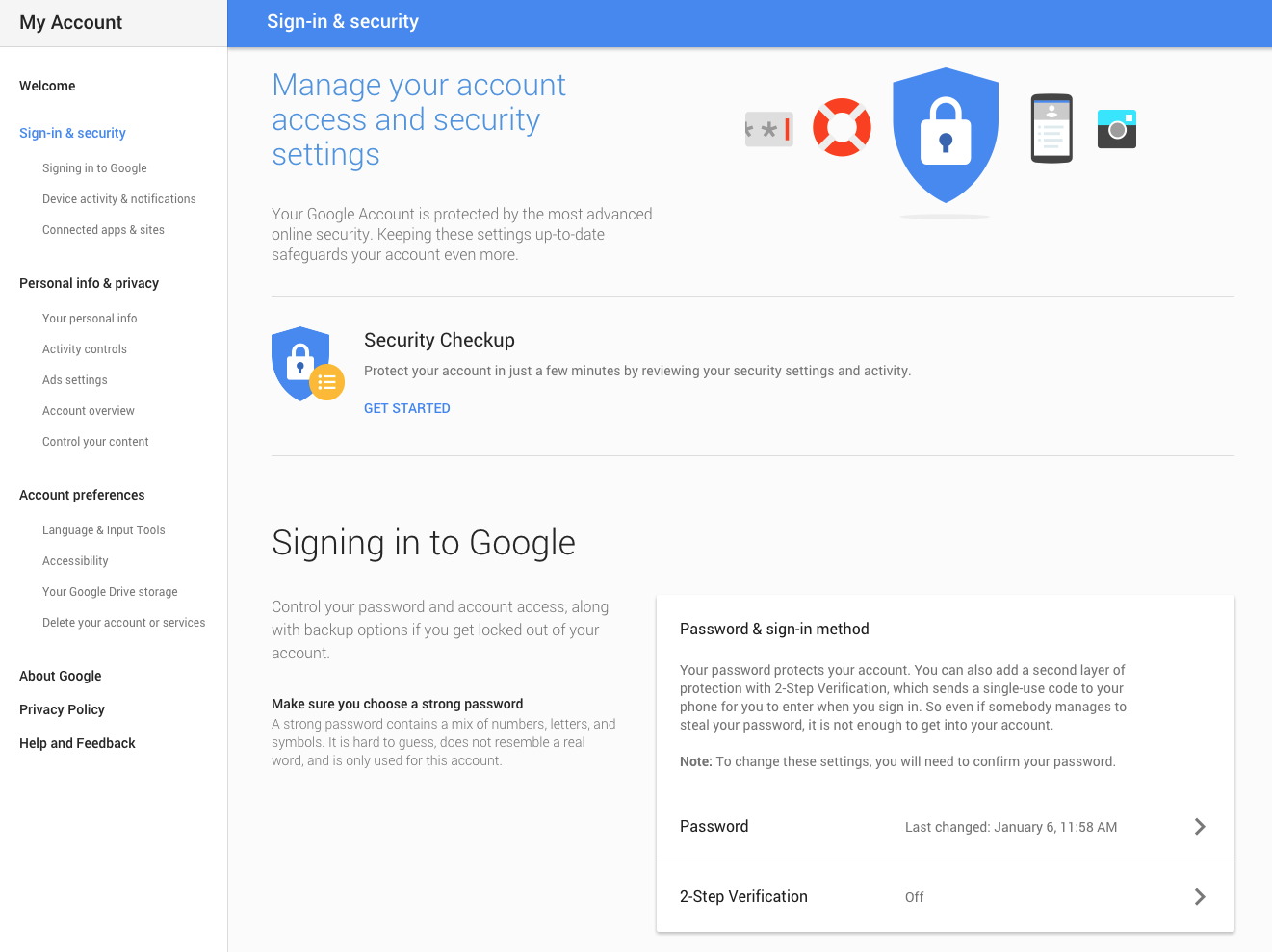
Next, navigate in to the 2 Step settings. Scroll down to "2 Step Verification".
(Again, doesn't look like a button- just click around where it says "Off".)
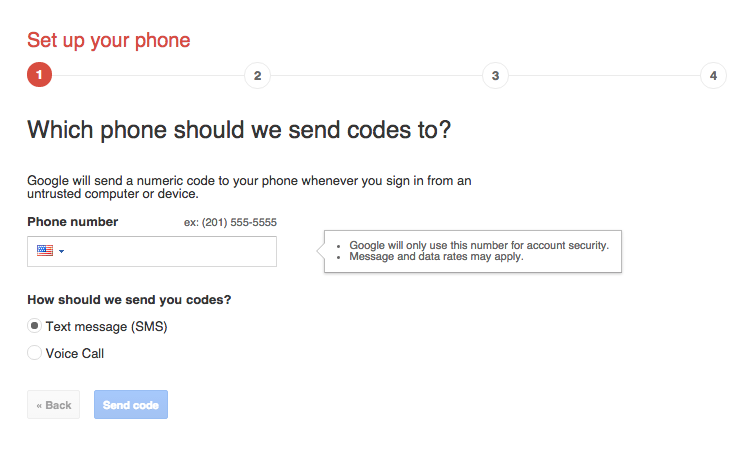
Once here, it will simply prompt you to "Get Started".

Next, you will be prompted to enter your phone number and verify the phone number by receiving a code. It will come as an SMS (text message) unless you specify otherwise.
\(^__^.)/ ---{ YOU'RE DONE!!! }
Comments
1 comment
WOW. Such instructions! Many 2 step helpings.
Please sign in to leave a comment.