
The Google Chrome Browser provides a powerful tool in managing "People" (aka Profiles). Profile Management can be a useful and time-saving setup for Optoro Team Members. Your profile can store a great deal of useful settings, which, once stored are able to be accessed across multiple machines (even simultaneously). Some useful examples are settings such as:
- Bookmarks/Favorites
- Saved Passwords
- Browsing and Search History
- Open Tabs (and defaults tabs)
- Browser Settings
The IT team recommends that you sign in to Chrome via your work e-mail address and keep any personal settings in a separate profile.
---- ---- ---- ----
Signing Into Chrome/Creating your Profile
- Click on the icon in the top right hand corner of Chrome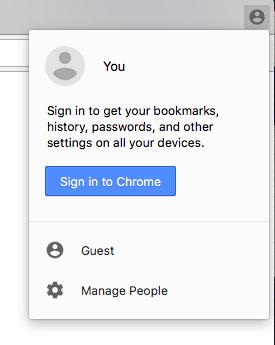
- Input your Optoro UID/PW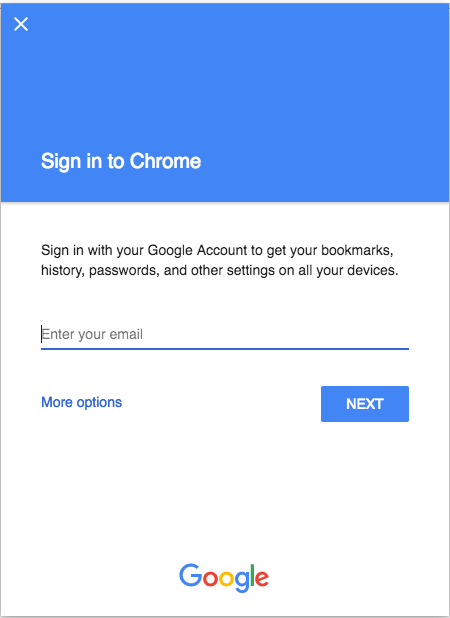
- Once you log in, select "LINK DATA"
(This links your data between your profile and any local data you have added. Similarly, if you create a profile by logging in on one machine and then into another, you can effectively 'merge' the data between the two places you have logged in.)
---- ---- ---- ----
Multiple People/Switching Between People
You can sign into multiple profiles in a single browser to do things like manage workflows or keep work and personal contents separate. Additional profiles may always be added using the instructions above, but first starting by selecting the "Manage People" selection in the People menu.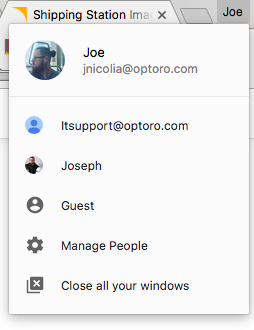
---- ---- ---- ----
Other browsers support profiles in a similar manner, but Chrome most closely matches settings and application access that we require here at Optoro. Since we utilize Google as our Domain Management Service, and subscribe to the full Google Suite, Chrome is the optimal browser for all team members.
Comments
0 comments
Please sign in to leave a comment.